Guide · 26 September 2026
How to add human approval to AI agents
An agent that can send email, post to social media or change a record can also do those things wrong. A human approval step, sometimes called human-in-the-loop, lets the agent do the work and a person decide whether the result leaves the building.
This guide covers what to gate, how a good approval gate behaves, and the mistake that quietly breaks most of them.
What to gate
Gate actions, not agents. Most of what an agent does is reading and thinking, and none of that needs a person. Gate the tool calls whose effects are hard to take back:
- Anything that reaches another person: sending an email, posting to LinkedIn or X, replying to a customer.
- Anything that moves money: refunds, payments, purchases, changes to a plan.
- Anything that changes or deletes records: CRM updates, database writes, closing tickets.
- Anything that grants access: inviting users, creating keys, changing permissions.
Leave reads ungated: searching, fetching a page, reading a file or a sheet. Gating them adds friction and protects nothing.
How a good approval gate works
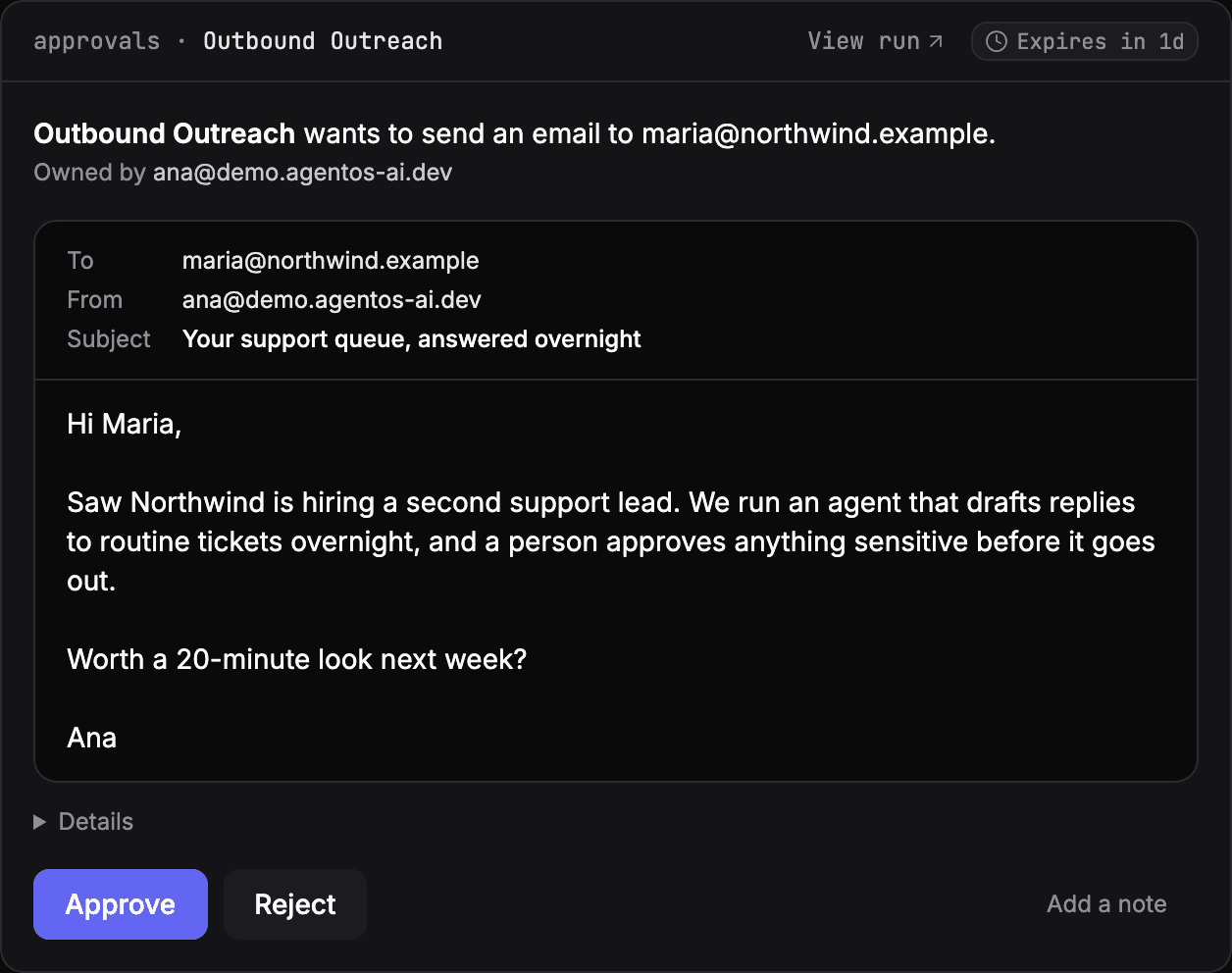
The agent should stop at the exact moment it wants to act, and the reviewer should see exactly what will happen if they say yes.
- The run pauses before the tool executes. Not after, and not at the end of the run. Nothing leaves until someone decides.
- The reviewer sees the real call. The recipient, subject and body of the email; the text and link of the post. Not a summary written by the agent.
- Approve runs the call as shown. The arguments the reviewer saw are the arguments that execute.
- Reject is information for the agent. The call never runs, and the agent is told it was rejected, so it skips that item, carries on with the rest, and reports it.
- Every request expires. A decision nobody makes should not block the run forever. In AgentOS an approval expires after 24 hours; the call never runs and the run ends as failed.
Batch related calls into one decision
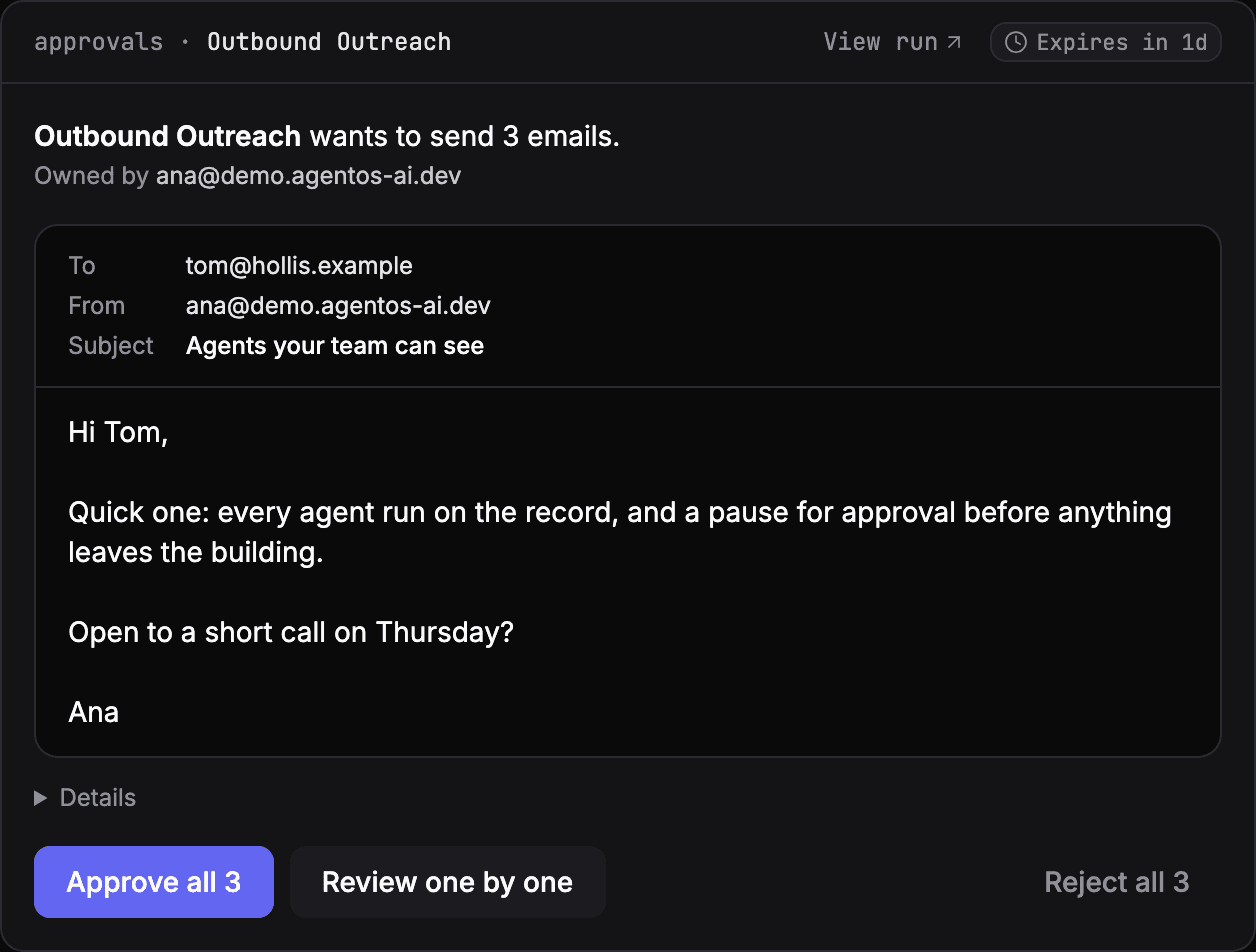
When an agent wants to send three emails, the reviewer should get one decision, not three separate interruptions. Group the calls a run is waiting on, show the first in full, and let the reviewer approve the batch or step through the calls one by one. The run continues only when every call is decided.
The mistake: too many approvals
The failure mode of approval gates is not a bad email slipping through. It is a queue nobody answers.
We run our own company on AgentOS, and every social post waits for approval. Over five weeks, 17 of 29 weekday posts expired before anyone decided. The gate worked; the process around it did not.
Keep the queue small enough to be answered:
- Gate less. If a tool call is safe to run unattended, let it run.
- Batch more. One decision per run, not one per call.
- Make it someone's job. Decide who answers the queue. In AgentOS the agent's owner gets a notification for each approval, so give every gated agent an owner who will answer.
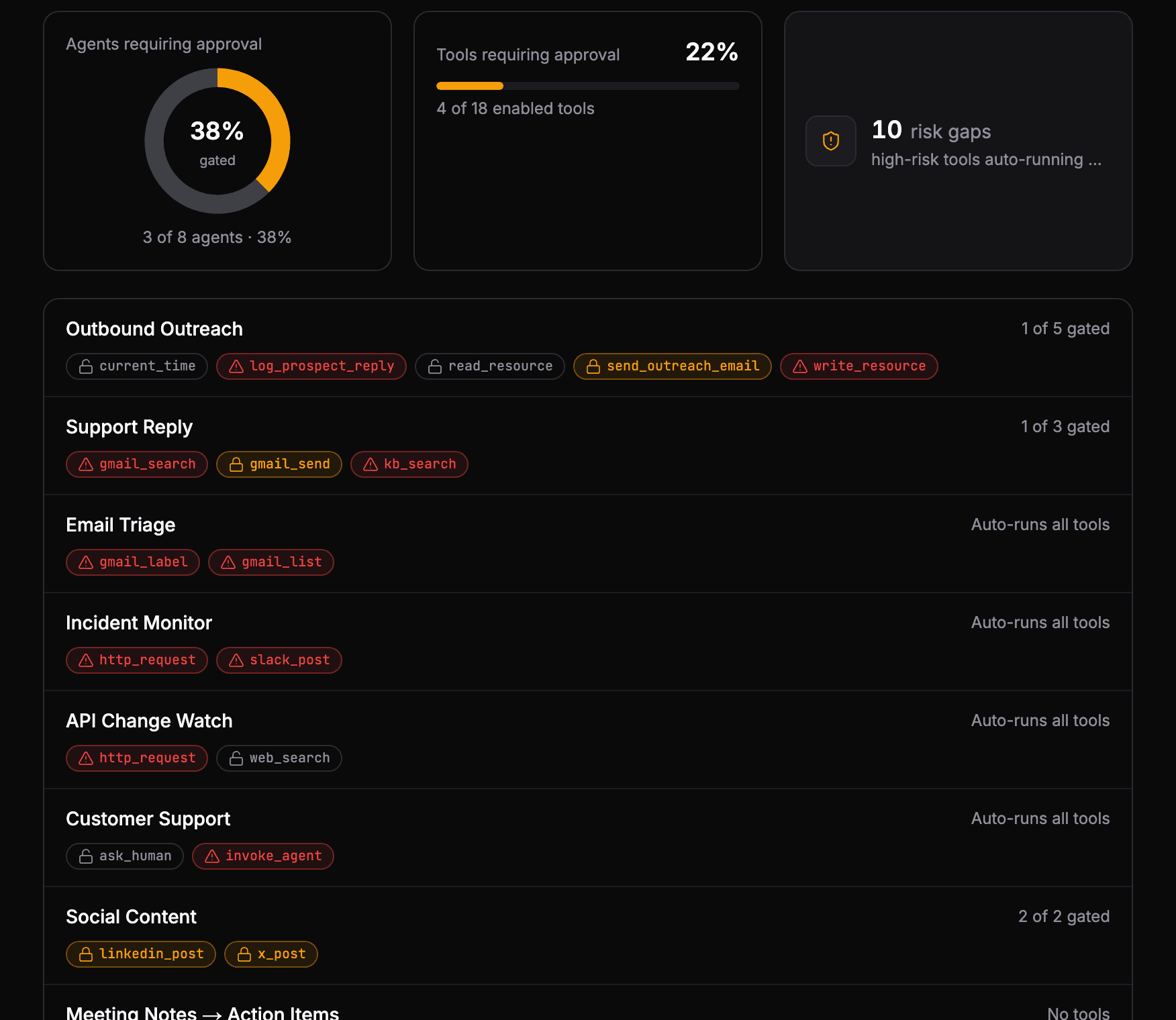
- Check coverage. Know which agents can act without asking, and which risky tools have no gate yet.
Setting it up in AgentOS
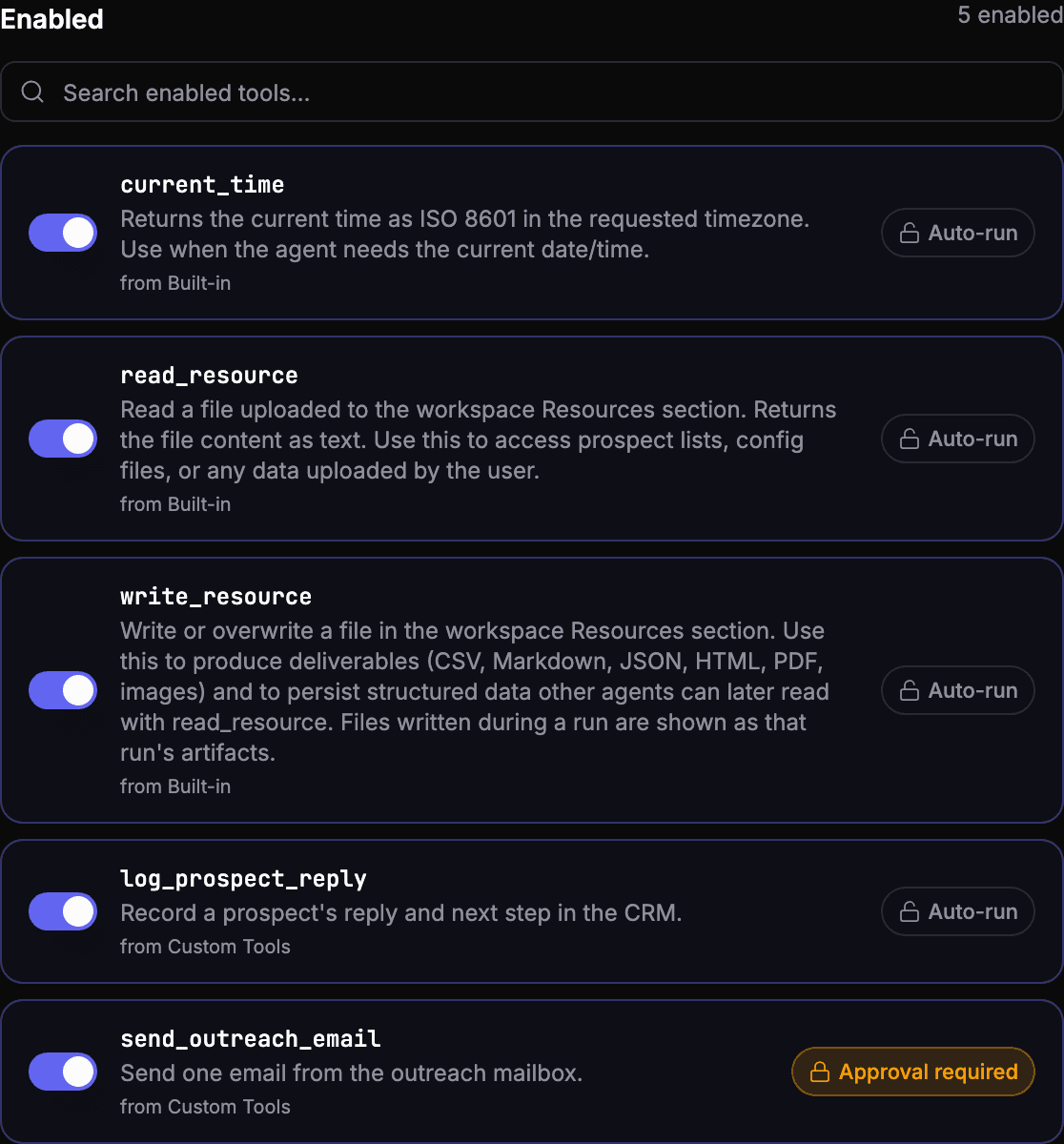
- Open an agent's Tools tab and switch each tool that should wait for a person from Auto-run to Approval required.
- Pending calls appear on the Approvals page with the exact arguments, and the agent's owner gets an in-app notification.
- Decide in the dashboard, or from code with a workspace key:
curl -X POST https://agentos-ai.dev/api/v1/rpc/approvals_decide \
  -H "Authorization: Bearer aos_ws_..." \
  -H "Content-Type: application/json" \
  -d '{ "approval_id": "<approvalId>", "decision": "approved" }'
The approval gates docs cover expiry, notifications and the API in full.
See your own agents like this
AgentOS records every run, pauses risky actions for approval, and tells you when an agent breaks.